
How to Use Google Docs to Track and Display Your Weight Loss

Create a spreadsheet tool using Google Docs, that tracks your weight loss that allows your blog readers to visualize your progress.
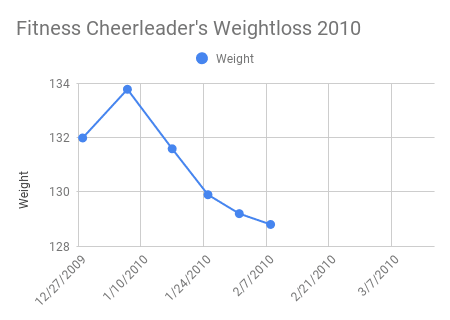
Here’s a great way to create a spreadsheet tool using Google Docs, that tracks your weight loss progress that also allows you to share your progress with your blog readers in a nifty little chart.

Things You’ll Need:
- A computer connected to the internet
- A free Google account
Instructions:
- Go to the Google home page
Before creating your weight loss tracking spreadsheet using Google Docs, you must Sign In to your Googe account. To do that go to Google.com using your internet browser. On the Google home page click on the “Sign In” in the upper right corner of the web page. - Sign into your free Google account
On the Google Accounts sign in web page, log into your free Google account by entering your account email address and password. - Navigate to the Google Docs web page
After signing into your Google account, click on the “more” link at the top of the page, and then click on “Documents”. - Create a blank spreadsheet
To create a blank spreadsheet, on the navigation bar click on “New” and select “Spreadsheet”. - Enter the headings into your weight loss tracking spreadsheet
Enter the headings of your weight loss tracking spreadsheet into row 1. Type in these cells:-A1: Date
-B1: Weight - Enter dates into your weight loss tracking spreadsheet in column A.
I choose to only weigh myself once a week, on Monday mornings. My column A has the following dates:2/1/2010
2/8/2010
2/15/2010
2/22/2010
3/1/2010 - Enter your weight in column B.
- Click “Insert”, then select “Chart” to begin creating your chart.

- A new chart window will pop up. Select chart type of your choice:

- In the “What data” field enter: Sheet1!A1:B11
- Group data by columns, and tick off the two selection boxes:
- Add a title to your chart and axis names – I have given my axis the names “Date” and “Weight”:
- Save your chart!
- Click on your newly created chart and scroll to “Publish chart”:

- Copy and paste the resulting HTML code where ever you would like to publish your new weight loss chart.

Some examples are:- Your blog sidebar
- Blog post
- Page on your blog (I have a progress page where you can follow my weightloss and half marathon training progress).
- Be sure to save your spreadsheet by clicking on the “Save” button at top of the web page.
- Visit your spreadsheet each week and enter your weight – your chart will automatically update.


Very easy Tutorial. Thank you !
But, to a trained cost accountant, it is a
quick road map to help management analyze the business and zero in on areas for improvement.
Here are 4 things bookkeeping and accounting services do for their customers:
. As an Accountant with an MBA Degree in you will be able to use your
skills to analyze a company.
nice post for pPl
This is not accurate. Google Spreadsheets don’t have time scale for the x axis, so unless you weight every day or every x days (leaving the same amount of time between weights) the chart is not accurate.